what you should know about supOS license
- A notification appears on the login page 60 days before expiration to remind you.
- Within 30 days after the expiration date, the platform notifies you of a 10% reduction in online users.
- 30 days after the expiration date, only admins can access the platform.
Logging in to Operation Center
Access the supOS platform with default account admin and password 123456, and then click Login.
info
- Go to
 > User Security Management > User Management, and change admin password.
- The account (admin included) will be locked out after multiple wrong attempts. You can change the number of attempts from > System Management > System Configuration > Password configuration.
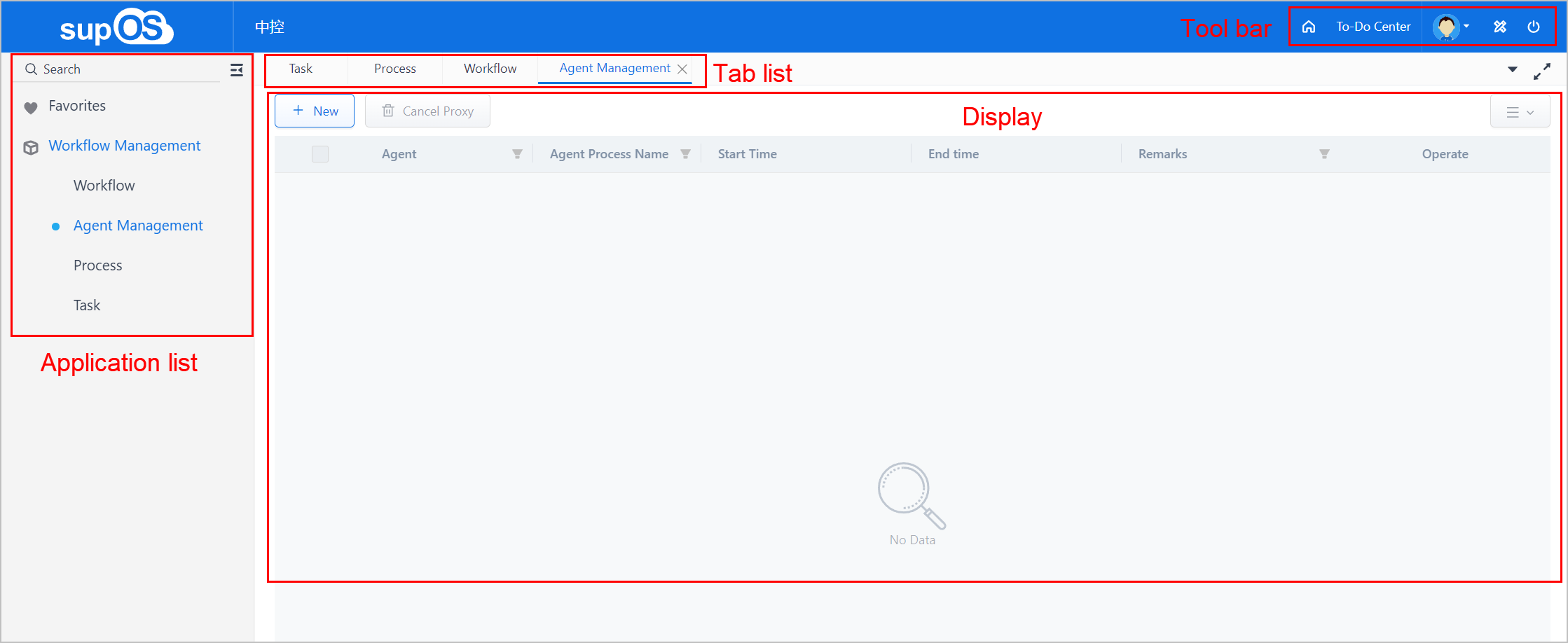
| No. | Section | Description |
|---|---|---|
| 1 | Application list | Displays published applications that meet the following requirements:
info Favorites and Workflow Management are displayed by default. |
| 2 | Company name | Displays the company name the current account belongs to. |
| 3 | Toolbar |
|
| 4 | Tab list | Displays all open tabs. Up to 8 tabs are available.
|
| 5 | Display |
|
 to go back to the homepage. You can set the homepage.
 to exit the current account.
 to close tabs.
 to view the full screen.
Getting to Know Design Center
Click at the upper-right corner on the homepage to go to the design center.
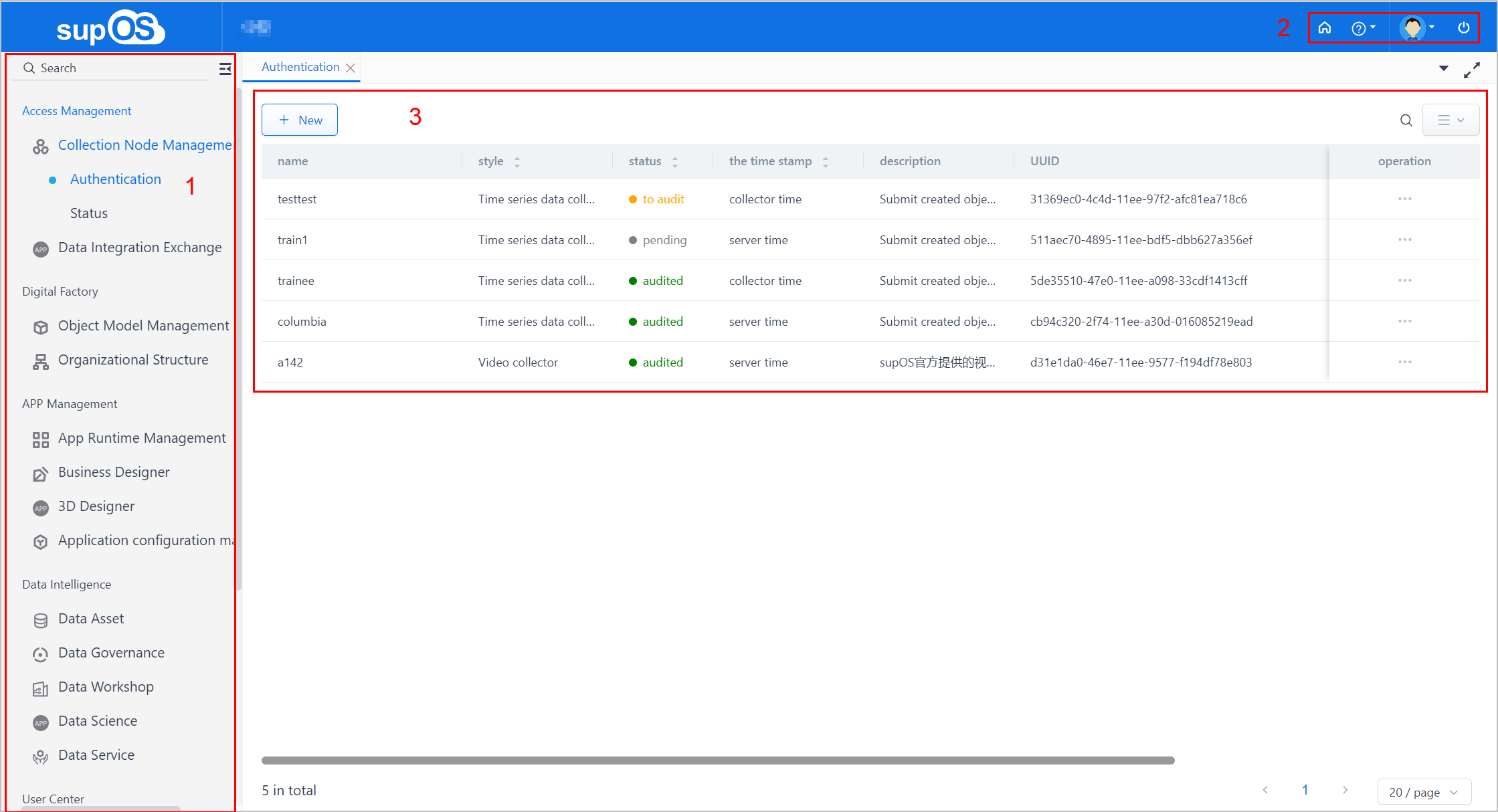
| No. | Section | Description |
|---|---|---|
| 1 | Function menu | Main functions and installed modules are displayed. |
| 2 | Toolbar |
|
| 3 | Display | Displays the details of the selected module. |
 to view the manuals and openAPI documents.
Platform Information
Click  and then select About supOS.
info
The data is authorized through the dongle, and can be extended by updating dongle configurations.
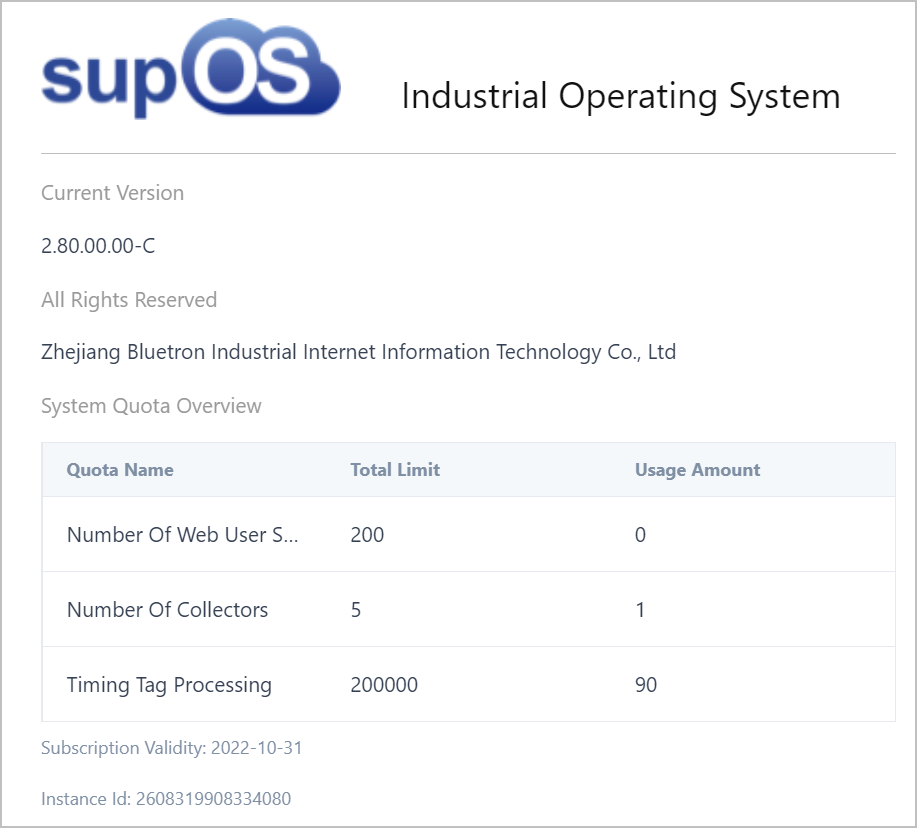
- Number of Web User Sessions : The number of users who can log in at the same time, including on web client and mobile client (supLink and supMobile).
- Number of Collectors: The number of connected collectors. Collectors cannot connect to the supOS platform when the limit is exceeded.
- Timing Tag: Processing The number of connected time series tags. The attributes is hidden, timestamps are refreshed and attribute state code is 100000000000000 when the connection limit is exceeded.
- Instance ID: The only ID of supOS instances.
info
Admin does not take up any quota. After the system quota is used up, only admin can log in.